7mm Mickoo's Commercial Workbench

mickoo

Western Thunderer
And so it starts......

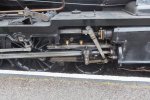
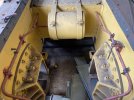
Massive thanks to the guys (you know who you are :cool: ) and staff on the Watercress who facilitated access all areas and answered dozens of questions.

Not much to show but the project skeleton is there, reference material organised and head defragged to zone in on what needs doing; just need to flesh it all out now.

Img_1674.jpeg

Img_1679.jpeg

IMG_5794.jpg

Img_2006.jpeg

Image.jpg
 

Dave Holt

Western Thunderer
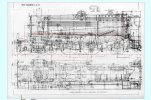
Mick, I'm intrigued by the red lines on the GA elevation. Some appear to follow the footplate framing, top of rail, etc., but what about the vertical line just ahead of the front truck axle and the shallow box bracketing the front coupled axle, below rail level?
Dave.
 

mickoo

Western Thunderer
Mick, I'm intrigued by the red lines on the GA elevation. Some appear to follow the footplate framing, top of rail, etc., but what about the vertical line just ahead of the front truck axle and the shallow box bracketing the front coupled axle, below rail level?
Dave.
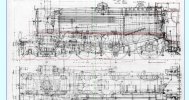
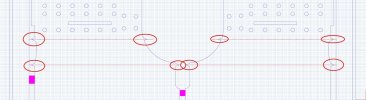
Scaling reference lines, many scanners do not scan 1:1 and often increase the height aspect with respect to the length, or, if document (A4) scanning the width of the page is scaled wider than the height; on my flat bed it's about 103% width.

Therefore the scanned drawing needs adjusting so that height and length are true before importing into the CAD package, some CAD packages can scale X & Y individually, mine can't.....or more correctly..... I've not found out how to do it ;). The vertical line is rail head to boiler centre line, the horizontal is connecting rod length.

Ideally the longer your scaling reference lines the more accurate the drawing will be, but I've found about 10' to be more than adequate for O gauge.
 

Big Train James

Western Thunderer
mine can't.....or more correctly..... I've not found out how to do it ;)

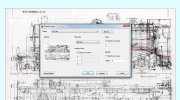
Insert the drawing, then save it as a block, then insert the block. In Autocad, you can scale X, Y, and Z individually (or at least you could in the past) in the block insertion dialog box by checking or unchecking the various boxes. Why you can scale axes independently there but not anywhere else is one of Autocad's many mysteries.

autocad non-uniform scale.jpg

A long time ago, I think the hitch was that you couldn't explode a block that had been scaled in this way, but I think that has since been fixed. Although I'm not sure that you would need to explode the block in this instance.

I can double check the workflow tomorrow morning but you'll probably have already done it by the time I'm at the computer via google and images of the dialogue box still show the "Uniform Scale" checkbox at the bottom of the Scale column. I can't yet speak to the issue of exploding the non-uniformly scaled block if necessary.

You should have already asked me about this......:rolleyes::cool::D.
 

mickoo

Western Thunderer
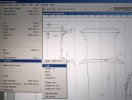
Interesting, I don't have an insert function, only import (3D object biased) or attach and that has no scaling function other than the overall size when you actually place it in the workspace.

Image2.jpg

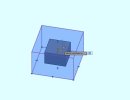
However, for the first time ever my scaling option will work in one axis, traditionally (and rather annoyingly) it's only worked in x, y, z in uniform.

Image.jpg

Unlike 3D objects the scaling of the image does not work in real time, you extend/retract and nothing happens until you let go of the grip, so still a bit of guessing and several attempts to get it right. In 3D it makes a shadow model of the original and the new scaling one is solid so you have a reference between the two as you live scale.

Image3.jpg

As can be seen the scaling of 3D objects in uniform across all three axis even if you just select one of the axis grips, however the planar object will scale in a single axis as noted earlier, so this morning is already a bonus learning day.

There will be a setting to release linear scaling for 3D objects somewhere I'm sure, just need to find it.
 

mickoo

Western Thunderer
Well that was an interesting day on the Urie S15 project, they have as much in common with the Maunsell engines as they don't, if that makes any sort of sense.

Luckily the design of the Gladiator kit mean that several etches can be saved, those with common parts. unlike many kits these etches are grouped pretty well, you won't find cab steps on the footplate etch for example. Of the 13 etch sheets, six are compatible and a couple of the others are surplus so do not need reworking.

Having established what needs replacing it's then a simple case to follow the yellow brick road and join the dots up. The chassis on the Urie S15 is a lot different to the Maunsell engine, more than I imagined, the Urie is a cousin of the H15/N15 clan, the Maunsell more akin to a younger sibling of the King Arthurs.

The plan today was a new set of frames, I'll be honest it takes as long to draw up reasonably accurate stays in the right place as it does agricultural L and U shaped blobs placed at random. So taking that on board we can uplift the chassis quite easily and still retain ease of construction, we're not after MOK style as that's the reserve of MOK, we're after a modernised Gladiator product.

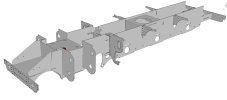
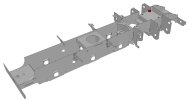
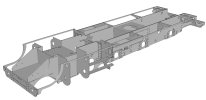
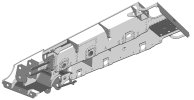
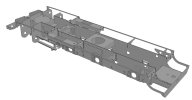
Using the 3D model approach from the recent B1 project it doesn't take long to draw up a set of frames, transplant to 3D and test construct to validate the etch.

The plan is to have it all the chassis done tomorrow and sent to the etchers for a test shot, that includes side plates, stays shown plus rear drag beam, bogie bolster stay, front platform, buffer and drag beam and footplate supports; with a good tail wind perhaps the motion bracket and cylinder block carcass.

Traditionally Gladiator do not have frame overlays but you lose a lot of easy detail for very little work so I'm inclined to bend that rule and make an exception, it also makes it easier to hide the stay tabs.

Image.jpg

Image2.jpg

Image3.jpg
 

mickoo

Western Thunderer
You really are in the vanguard of developing new materials and techniques in this part of the modelling world.

Wonder where this will leadin 5 or 10 years time.

Bernard
You overestimate my skill set drastically :))

None of this hasn't been done before, all we're (kit developers today) doing now is adding more detail than was previously acceptable, but it's still two slab sided frames and fiddly bits between them, just different shapes that's all. To be fair most of that is technology driven, no more pencils and paper artwork and hoping everything fits.

In ten years time I'm hoping I'm not doing this truth be told, though I suspect I will be in some context or another.
 

Brian McKenzie

Western Thunderer
Interesting, I don't have an insert function, only import (3D object biased) or attach and that has no scaling function other than the overall size when you actually place it in the workspace.

My old, but legal copy of Photoshop, can rescale X and Y axis separately, but ordinarily I would use AutoCAD's block re-scaling function as described by Jim.
(AutoCAD is better at some image manipulations than Photoshop.)

If using Photoshop:

Open the image/plan, Duplicate the Background Layer, use the Polygonal Lasso Tool to select the plan - or the part of the plan that needs re-scaling (on the Background copy layer).

Go to Edit / Transform / Scale

IMG_0279A.jpg


Across the top of the screen, input boxes appear where width and height values can be adjusted by pixel count, or by adjusting percentages (and rotation if needed). Click the tick mark and you're done.

IMG_0278A.jpg

The example above shows the chimney reduced in width by 50% Crop or resize the image to show only the newly adjusted layer and Save.

-Brian McK.
 

mickoo

Western Thunderer
My old, but legal copy of Photoshop, can rescale X and Y axis separately, but ordinarily I would use AutoCAD's block re-scaling function as described by Jim.
(AutoCAD is better at some image manipulations than Photoshop.)

If using Photoshop:

Open the image/plan, Duplicate the Background Layer, use the Polygonal Lasso Tool to select the plan - or the part of the plan that needs re-scaling (on the Background copy layer).

Go to Edit / Transform / Scale

View attachment 245155


Across the top of the screen, input boxes appear where width and height values can be adjusted by pixel count, or by adjusting percentages (and rotation if needed). Click the tick mark and you're done.

View attachment 245157

The example above shows the chimney reduced in width by 50% Crop or resize the image to show only the newly adjusted layer and Save.

-Brian McK.

Much appreciated, I use paintshop pro and simply measure the pixels, work out the change needed and resize the image accordingly and then import into AutoCAD. I'll probably keep doing it that way as that means the master image is correct and not one saved in AutoCAD.
 

Dave Holt

Western Thunderer
Wow. A simple question seems to have generated quite a set of responses. I'm not into Autocad or Photoshop, so it's all a bit beyond me.
However, I now see that my simple scaling of prototype drawing prints down to 4 mm scale, using a calculator, and usually based just on horizontal dimensions, is too crude and I really should workout the scaling factor for both vertical and horizontal dimensions separately to allow for print distortion. I'll try to do better in future.
Dave.
 

Big Train James

Western Thunderer
I'm curious about the etch artwork. I'm trying to figure out the following piece, when compared to the 3d renders:

etch question.jpg

At first I though it was half-etched on the other side, then folded back on itself. Otherwise shouldn't it have a gap up the middle? But the backsides of the frames are plain according to the renders, without rivets. I'm probably not seeing it correctly, it's often hard for me to decipher these full sheets of etches, although I do like to try and figure out where everything goes and how it fits together.
 

Big Train James

Western Thunderer
Interesting, I don't have an insert function, only import (3D object biased) or attach and that has no scaling function other than the overall size when you actually place it in the workspace.

Slow on getting back to this, but I could have used different words. I know that you have a different process, so this is just here for reference at this point.

The workflow would be:

Imageattach (insert the image) ---> Block (or I prefer Wblock, so the block definition is available for use in any file) ---> Insert (pick the block you've just created, check or uncheck the appropriate boxes for scaling, enter)

I was able to scale the block in only 1 axis, and explode it afterward without any issues.

Regarding scaling with precision when the size of the image doesn't scale in real-time., I suggest you try scale by reference. It takes all the guess work out of the process when an exact scale factor isn't known. There is a similar function for rotating by reference which is just as effective.

The workflow in this case would begin by drawing a reference line that passes through the base point, in the example above I would use the railhead for heights or the centerline of one driver for lengths (1). Offset that line through the next reference point on the drawing, here it would be through the smokebox door center (2) or the centerline of the next driver. Then offset the first line a second time, by the desired final distance once scaling is complete (3).

scale by reference.jpg

Execute the command by selecting the intersection points between the three horizontal lines and the vertical reference line:

Scale --> Reference --> Select base point (1) --> Select the first reference point (1, again) --> Select the second reference point (2) --> Specify the new length (3)

The process can be used to scale things up or down from the starting size. When complete, the image should be resized so that the centerline of the smokebox door is the proper distance from the railhead.

Another issue to keep in mind, although you haven't mentioned it here, is that attached images or pdf's will behave differently for refreshes during commands, or panning, orbiting, and zooming, depending on the the display mode at the time. If I remember correctly, in any of the shaded modes, images will appear as blank sheets during manipulation of the object or view. I seem to recall that the image remains visible under the same operations when in 2D Wireframe. I'll have to double check that tomorrow.

Hope that helps. A video would be better, but I'm limited at the moment by the fact that my access to Autocad is on a work computer, while my recording software is on my personal laptop. Currently, and regrettably, never the twain shall meet. :mad:
 

Genghis

Western Thunderer
I'm curious about the etch artwork. I'm trying to figure out the following piece, when compared to the 3d renders:

View attachment 245313

At first I though it was half-etched on the other side, then folded back on itself. Otherwise shouldn't it have a gap up the middle? But the backsides of the frames are plain according to the renders, without rivets. I'm probably not seeing it correctly, it's often hard for me to decipher these full sheets of etches, although I do like to try and figure out where everything goes and how it fits together.
Overlay detail for the frames?
Dave
 

mickoo

Western Thunderer
I'm curious about the etch artwork. I'm trying to figure out the following piece, when compared to the 3d renders:

View attachment 245313

At first I though it was half-etched on the other side, then folded back on itself. Otherwise shouldn't it have a gap up the middle? But the backsides of the frames are plain according to the renders, without rivets. I'm probably not seeing it correctly, it's often hard for me to decipher these full sheets of etches, although I do like to try and figure out where everything goes and how it fits together.

David is correct, they are the half etched detail overlays for the frame sides. You can do the rivet detail two ways, full thickness and punch the rivets through and then individual flange plates riveted and stuck on, or, a half etched sheet with all the rivet detail on and raised flange sheets where you then punch the rivets through.

By using 0.5 mm for the main frames and adding a half etch (0.25 mm) overlay my final frame width comes out at 0.75, not quite scale but strong enough for modeling but thin enough to work with. Trying to punch through 0.7 mm rivets is a chore to be honest.

What you've highlighted there is the half etched front side showing all the raised bits to remain after etching, the mirror side (blue) will be all solid as that's the back side and remains un etched.

Image.jpg

There's a slight wrinkle in this set of frames as there's an inward jog ahead of the first driving axle, that's no problem on the main frames as you can half etch a thin vertical line to aid bending, but you can't do that with the half etch; well you could if you employed a four stage process...two front and two rear etch passes. So to aid bending you need to scribe/gouge a line at the corresponding point to make your own bend lines.

To achieve that you can either mark the carrier etch at the appropriate points and scour the line on the part before taking the part off, or, (and I fully admit plagiarizing this from a JLTRT kit) you can add discrete tabs to show where to scour and then trim them off afterward.

Image2.jpg

I've done it the previous way on the W1 and B1 projects, but actually prefer this way as you can work with the piece outside of the main etch and it's just a bit easier to handle. The red lines are where you'd scour between the triangular tabs.

I'll also be adding the triangular tabs to the edges of the footplate to aid forming the curved sections.
 

mickoo

Western Thunderer
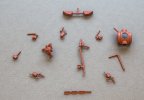
One of the other things I've been bimbling along with in the background are casting masters for the revised MOK Merchant Navy.

Dave does all the art work and CAD model, all I have to do is orientate, print and prep for casting, there's been a bit of to and fro to get CAD models that will print and still look good for casting but it's getting there.

Dave does not shy from the smallest detail, which makes orientation and support positioning challenging, often there are no natural sacrificial faces or edges to place supports on; so it's a case of picking the least detailed area and then lots of post processing to tidy it all up.

Sample of some of the more recent stuff attached, you'll have to excuse the poor depth of field, all my photo gear is set up for trains in vast landscapes and container ships, not micro engineered model parts :D

PS, I did try the combination brake lever to see if it actually worked, and yes, the lighting conduit elbows do have inspection lids on them :cool:

IMG_7747.jpg
 
Top